
One of the most useful updates is the ability to choose an image shape before you generate. Depending on where you access the tool, you may see options for square, portrait, or wide images.
As a result, you can start with an image that fits your project. You may not need to create a square image first and then use another tool to stretch or extend it. Read on to see how to use Bing Image Creator, choose the right image format, and write better prompts for your business.
Note: Image format options can vary by Microsoft tool, account, and interface. Before generating, check the size or aspect-ratio choices available in the version you are using.
What Is Bing Image Creator?
Bing Image Creator is Microsoft’s AI image tool. You describe the image you want, and the tool creates several options based on your prompt. You can use it to create:
- Blog post images
- Social media graphics
- YouTube thumbnail backgrounds
- Images for presentations
- Marketing visuals
- Website header images
- Video scene images
You can access Image Creator through Bing, Microsoft Copilot, or Microsoft Designer. The layout and available controls can look a little different depending on which version you use.
How to Create an Image With Bing Image Creator
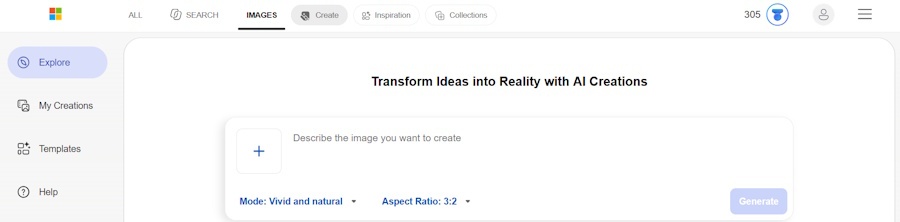
Creating an image is simple.
- Open Bing Image Creator, Microsoft Copilot, or Microsoft Designer.
- Sign in with your Microsoft account if needed.
- Type a detailed description of the image you want.
- Look for a size, format, or aspect ratio setting.
- Choose the shape that fits your project.
- Generate your images.
- Download your favorite option.
After you generate the images, you will usually receive several versions to review. Look closely at each option before using it in your marketing. Check faces, hands, product details, logos, signs, and text before publishing.
Choose the Right Image Format Before You Generate
The best image shape depends on where you plan to use it.
| Where you will use the image | Best format to choose |
|---|---|
| Blog featured image | Wide or landscape |
| Website banner | Wide or landscape |
| YouTube thumbnail background | Wide or landscape |
| Facebook post | Square or landscape |
| Instagram feed post | Square or portrait |
| Instagram Story | Portrait |
| Instagram Reel cover | Portrait |
| TikTok cover or video scene | Portrait |
| Pinterest Pin | Portrait |
| Presentation slide | Wide or landscape |
Choosing the right format from the start saves time and helps you avoid awkward cropping later.
For example, a vertical image can work well for an Instagram Story, but it may not fit a blog header. A wide image can look great on a website, but important details may get cut off when you post it as a square social image.
Square Images
Square images work well for many social media posts, profile graphics, and simple promotional content. Choose a square format when you need an image for:
- Instagram feed posts
- Facebook posts
- LinkedIn posts
- Product spotlights
- Quote graphics
- Simple ads
A square image gives you a balanced composition. It works especially well when the main subject is in the center.

Portrait Images
Portrait images are tall and vertical. They are ideal for content people view on their phones. Choose a portrait format for:
- Instagram Stories and Reels
- TikTok covers
- Pinterest Pins
- Mobile ads
- Vertical video scenes
When you create a portrait image, keep the main subject near the middle. Social platforms often place buttons, captions, and account information near the top or bottom of the screen.

Wide Images
These images are horizontal. They work well for websites, blog posts, videos, and presentation slides. Choose a wide format for:
- Blog featured images
- Website banners
- YouTube thumbnails
- Facebook cover images
- Video backgrounds
- Presentation slides
- Email header images
For wide images, ask the AI to place the main subject on one side if you plan to add text on the other side.
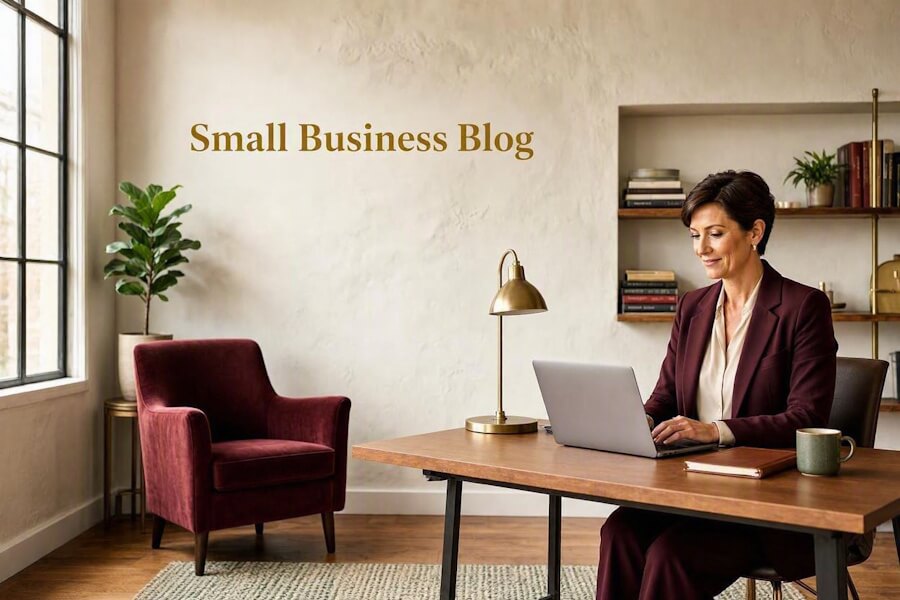
How to Write Better Bing Image Creator Prompts
Your prompt strongly affects the final image. Short prompts can work, but detailed prompts usually produce more useful results. Include these details when possible:
- Subject: Who or what should appear?
- Setting: Where is the image taking place?
- Style: Do you want a photo, illustration, watercolor, or 3D image?
- Mood: Should it feel warm, bold, calm, fun, or professional?
- Colors: Are there brand colors you want to include?
- Composition: Where should the subject appear?
- Format: Do you need square, portrait, or wide?
A simple prompt formula
Use this formula:
Subject + setting + visual style + colors + composition + format
Here is an example:
A confident real estate agent standing outside a charming suburban home, professional lifestyle photography, warm late-afternoon light, burgundy and gold details, agent positioned on the right with open space on the left, wide landscape image

The more specific you are, the more likely you are to get an image you can use. For more ideas you can use in your social content, explore these AI image prompts for brand-ready social graphics.
Do You Still Need Canva to Extend an Image?
Often, no.
If Bing Image Creator lets you choose an image format before you create it, pick the right size from the start. This is usually easier than making a square image and extending it into a wide or tall image afterwards.
Canva can still be helpful when you need to:
- Add your logo, headline, or call to action
- Build a social media graphic
- Combine several photos or graphics
- Extend an image you already created in the past
- Resize one finished design for several platforms
- Create a branded template for your business
Think of Bing Image Creator as a tool for making the visual. You can use Canva to design the finished marketing graphic. You may use one tool or both, depending on your project.
Tips for Using AI Images in Your Business Marketing
AI images can help small businesses create more content without planning a full photo shoot for every post. Still, use them with care. AI visuals work best when they support a clear visual content strategy for your business.
Keep the image connected to your brand
Use colors, settings, and subjects that fit your business. A law firm, restaurant, photographer, and home service business shouldn’t all use the same AI image style.
Avoid AI-generated text
AI image tools often struggle with readable words, signs, labels, and logos. Add important text later in Canva, Adobe Express, or another design tool. If the final graphic communicates an offer, instruction, or key message, write alt text for the marketing graphic to describe what readers would otherwise miss.
Review each image closely
Do not download and publish the first result without checking it. Look for distorted hands, strange objects, extra limbs, misspelled signs, or details that do not make sense. Before you publish, use these tips to fact-check AI content before it goes live.
Use real photos when trust matters most
AI images are useful for concepts, backgrounds, blog visuals, and creative campaigns. But real photography is often the better choice for your team, your workspace, your products, customer stories, and before-and-after work.
A mix of real photography and AI-created visuals can make your marketing feel more natural.
Use Bing Image Creator Images for Blog Posts and Videos
Wide AI images can work well as blog featured images, section images, YouTube backgrounds, and video scenes. For a blog post, create an image that supports the topic without trying to explain everything in one picture. Keep the composition simple.
For videos, create a set of images in the same style. Use similar colors, lighting, and subjects so the video feels connected from scene to scene. If you are new to creating business videos, our Video Marketing 101 guide can help you turn those visuals into a simple content plan.
For example, if you are creating a video about social media marketing for local businesses, you could create a:
- Wide image of a business owner planning content
- Portrait image of someone filming a short video
- Square image for a sample social post
- Wide image of a team reviewing marketing results
Using a consistent visual style can make your content look more polished.
Frequently Asked Questions About Bing Image Creator
Can Bing Image Creator create portrait images?
In some versions of Bing Image Creator, Microsoft Copilot, or Microsoft Designer, you may see a portrait or vertical format option. The available choices can vary by tool and interface. Check for a Size, Format, or Aspect Ratio setting before you generate.
How About Wide Images? Can Bing Image Creator Create Them?
Some Microsoft image-generation tools offer a wide or landscape option. This format works well for blog images, website headers, presentations, and video backgrounds.
What is the best image format for a blog post?
A wide or landscape image is usually the best choice for a blog featured image. It fits most website layouts and works well when shared on social media.
How About Instagram? What is the Best Image Format?
Square and portrait images both work well for Instagram feed posts. Use portrait images for Stories, Reels, and other vertical content.
Do I need Canva to resize Bing Image Creator images?
Not always. If you can choose the right format before generating the image, you may not need Canva to extend or resize it. Canva is still useful for adding text, logos, layouts, and branded design elements.
Can I use Bing Image Creator images for my business?
Before using AI-generated images for commercial marketing, review Microsoft’s current terms of use and make sure the image does not include misleading details, recognizable brand logos, or content you do not have permission to use.
Final Thoughts About Bing Image Creator
Bing Image Creator can help you create useful marketing images faster. The key is to plan where the image will appear before you write your prompt. First, choose square images for social posts. Next, use portrait images for vertical content. Finally, select wide images for blogs, websites, presentations, and videos.
When you start with the right format, you spend less time cropping, extending, and fixing your images later.
Need Visuals That Fit Your Brand?
AI images can save time, but your marketing should still look like your business. New Horizons 123 creates custom visuals, short marketing videos, and content that help small businesses stand out and stay consistent.
Talk About Your Next Visual Project
Originally published January 19, 2025; Republished August 30, 2026, to update content.

As a Visual Digital Marketing Specialist for New Horizons 123, Julie works to grow small businesses, increasing their online visibility by leveraging the latest in internet and video technologies. She specializes in creative camera-less animated video production, custom images, content writing, and SlideShare presentations. Julie also manages content, blog management, email marketing, marketing automation, and social media for her clients.



Hi Julie,
I hadn’t tried this image creator from Bing, it looks very promising to give me better images than what Canva offers. Thanks so much for sharing about it.
I can’t wait now to try it out!
You’re very welcome, Lisa. Like all AI-generated images, watch out for pointy heads and extra fingers 🙂