
Updated September 2026: A YouTube Shorts thumbnail can now be customized in several ways, depending on your channel and device. Verified channels can upload a custom thumbnail for a Short through YouTube Studio on a computer. You can also use the YouTube app to choose a frame from the Short.
Can you add a thumbnail to a YouTube Short? Yes. If your channel is verified, you can upload a custom 9:16 image in YouTube Studio on a computer. In the YouTube app, you can choose a frame from the Short before or after you publish it.
This guide explains how to add, change, and choose a YouTube Shorts thumbnail. It also covers the recommended size and simple design tips that can help your Short look better in search results and on your channel page.
| What you want to do | Where to do it |
|---|---|
| Upload a custom thumbnail image | YouTube Studio on a computer |
| Choose a frame from your Short | The YouTube mobile app |
| Change a custom thumbnail image | YouTube Studio on a computer |
| Choose a different frame | The YouTube mobile app |
| Recommended aspect ratio | 9:16 |
| Verification required for custom uploads | Yes |
Can You Add a Custom Thumbnail to YouTube Shorts?
Yes. Verified channels can upload a custom image for a YouTube Short through YouTube Studio on a computer. The YouTube mobile app works differently. It lets you choose a frame from the Short, but custom image uploads for Shorts are currently available through YouTube Studio on a computer.
YouTube recommends a 9:16 aspect ratio for an uploaded Shorts thumbnail. You can use a vertical image that is 1080 x 1920 pixels as a practical working size.
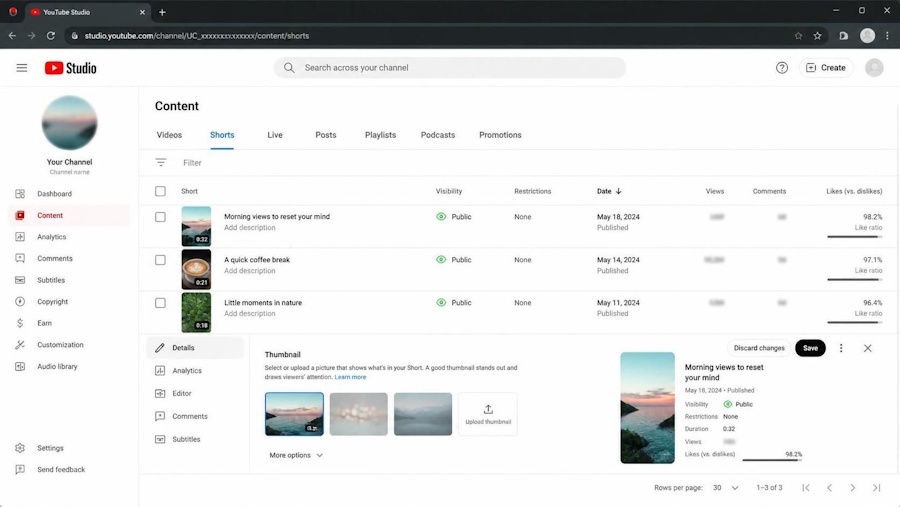
Adding a Custom Thumbnail to YouTube Shorts on a Computer
Use YouTube Studio to upload a separate image instead of choosing a frame from the video.
- Sign in to YouTube Studio.
- Select Content from the left menu.
- Choose Shorts at the top of the page.
- Find the Short you want to edit.
- Click the Details or pencil icon.
- Find the Thumbnail section.
- Select Upload file.
- Choose the image from your computer.
- Select Save.
Your channel must be verified to use custom thumbnail uploads. YouTube recommends a 9:16 aspect ratio for uploaded Shorts thumbnails. Thumbnail changes may take some time to appear.
How to Choose a Thumbnail Frame in the YouTube App
If you do not want to upload a separate image, you can choose a frame from your Short in the YouTube app.
- Open the YouTube app.
- Tap Create and select Short, or open the Short you want to edit.
- Continue to the video details screen.
- Tap the thumbnail editing or pencil option.
- Move through the video until you find the frame you want to use.
- Select the frame and continue saving or publishing the Short.
The mobile app selects an image from the video itself. It does not upload a separate thumbnail file for the Short. To upload a separate image, use YouTube Studio on a computer.
To upload a different thumbnail image
- Open YouTube Studio on a computer.
- Select Content.
- Choose Shorts.
- Open the Short you want to edit.
- Select Details or the icon.
- Click on Upload file in the Thumbnail section.
- Choose the new image.
- Select Save.
To choose a different video frame
Open the Short in the YouTube app and use the thumbnail editing option to select another frame from the video. The available buttons may look different depending on your app version.
What Size Should a YouTube Shorts Thumbnail Be?
YouTube recommends a 9:16 aspect ratio for an uploaded Shorts thumbnail. A 1080 x 1920 pixel canvas works well for creating a vertical image. Keep the most important part of the design near the center. YouTube may display the thumbnail in different layouts on different screens.
If you also create thumbnails for regular landscape videos, read our YouTube thumbnail size guide for the best dimensions and design tips.
| Thumbnail element | Recommendation |
|---|---|
| Aspect ratio | 9:16 |
| Practical working size | 1080 x 1920 pixels |
| Main subject | One clear person, object, or idea |
| Text | Three to five short words |
| Contrast | Use colors that are easy to see |
| Layout | Keep key details near the center |
| File purpose | Match the image to the actual Short |
How to Make a Good YouTube Shorts Thumbnail
Use one clear subject
Focus the image on one person, object, or main idea. Avoid filling the thumbnail with several unrelated images.
Keep the text short
If you add text, use three to five words. Make the words large enough to read on a small phone screen.
Use strong contrast
Make sure the subject stands out from the background. Light text on a dark background or dark text on a light background is easier to read.
Match the thumbnail to the video
The thumbnail should show what viewers can expect from the Short. Avoid using an image that promises something the video does not deliver. The first few seconds of the Short should deliver the same promise. Use these video hooks for YouTube Shorts, Reels, and TikTok to create a stronger opening.
Use consistent branding
Be sure to use the same colors, fonts, and layout style across your Shorts. For a simple plan that keeps your videos and graphics on-brand, read our visual content strategy for small businesses.
Why Can’t I Upload a Custom YouTube Shorts Thumbnail?
The upload option is missing
Custom Shorts thumbnail uploads are currently available through YouTube Studio on a computer. If you are using the YouTube mobile app, you may only see the option to choose a frame from the video.
My account is not verified
You must verify your YouTube account before uploading custom thumbnails. Vour account at youtube.com/verify.
My thumbnail change is not visible
YouTube says thumbnail changes may take time to appear. Refresh YouTube Studio and check the Short again later.
My image does not fit correctly
Use a vertical 9:16 image. A 1080 x 1920 pixel canvas is a practical choice for creating a Shorts thumbnail.
FAQ’s
Can you add a thumbnail to YouTube Shorts?
Yes. Verified channels can upload a custom thumbnail through YouTube Studio on a computer. The YouTube mobile app also lets you select a frame from the Short.
What size should a YouTube Shorts thumbnail be?
YouTube recommends a 9:16 aspect ratio. A 1080 x 1920 pixel image works well as a vertical design canvas.
Can you change a Shorts thumbnail after posting?
Yes. You can upload a different custom image through YouTube Studio on a computer. The YouTube app also lets you select another frame from the Short.
Is it possible to upload a custom Shorts thumbnail from your phone?
You can currently upload custom Shorts thumbnails through YouTube Studio on a computer. The mobile app lets you choose a frame from the video.
Do you need a verified YouTube channel to upload a custom thumbnail?
Yes. You must verify your YouTube account before you can upload a custom thumbnail.
Can you choose a frame from a YouTube Short as the thumbnail?
Yes. You can choose a frame from the video in the YouTube app before or after publishing the Short.
Build a Stronger YouTube Shorts Strategy
A good thumbnail is only one part of getting more views. Read our YouTube Shorts SEO guide for small businesses for help with titles, descriptions, keywords, and video structure.
Want to send viewers to another video, playlist, or related content? Learn how to add a clickable link to YouTube Shorts.
Final Thoughts
You can add or change a YouTube Shorts thumbnail in a few ways. Use YouTube Studio on a computer to upload a custom image. In the mobile app, select a frame from the video.
Choose a clear vertical image, keep the text short, and make sure the thumbnail accurately represents the Short.

As a Visual Digital Marketing Specialist for New Horizons 123, Julie works to grow small businesses, increasing their online visibility by leveraging the latest in internet and video technologies. She specializes in creative camera-less animated video production, custom images, content writing, and SlideShare presentations. Julie also manages content, blog management, email marketing, marketing automation, and social media for her clients.




0 Comments